> For the complete documentation index, see [llms.txt](https://docs.predicthq.com/llms.txt). Markdown versions of documentation pages are available by appending `.md` to page URLs; this page is available as [Markdown](https://docs.predicthq.com/integrations/third-party-integrations/using-event-data-in-power-bi.md).

# Using event data in Power BI

Learn how to connect PredictHQ data to Power BI using multiple methods, and build an example report.

In today's data-driven landscape, leveraging powerful analytical tools is essential for making informed decisions and uncovering hidden insights. This step-by-step guide focuses on Power BI as an industry standard robust, user-friendly platform. This guide uses Power BI as an example of a reporting suite that lets you integrate data from various sources, create interactive reports, and share insights across an organization, to leverage PredictHQ data for powerful insights.

## Overview

This tutorial covers how to connect PredictHQ data to Power BI via two sources, CSV upload and direct API connection using one of our APIs - the Events API.

The data used in this guide is based on a popular location, in our case San Francisco City as a whole. Change the location from San Francisco to the location you want to look at.

The main steps involved in this guide are:

1. Building report parameters around a location
   * Example parameters for this guide
2. Select an input method
   * CSV upload
   * Snowflake connection
   * API connection
3. Guide to building the report
   * Example report download

**Requirements:**

1. Access to PredictHQ data via three methods with three different requirements:
   * CSV: PredictHQ account - [Sign up for a PredictHQ account](https://signup.predicthq.com/) if you don’t already have an account.
   * Snowflake: PredictHQ [Snowflake Data Share](https://docs.predicthq.com/integrations/third-party-integrations/snowflake)
   * API: [API Access Token](/api/overview/authenticating.md)
2. [Microsoft Power BI](https://www.microsoft.com/en-us/power-platform/products/power-bi) reporting software

## Building report parameters around a location

For the purposes of this tutorial, parameters will be fixed for a standard example. The next section, Example parameters for this guide, defines the parameters, focusing on San Francisco city for attended events in a three-month period.

{% hint style="info" %}
You can modify all of our parameters based on your needs, see our [filtering guide](/getting-started/guides/events-api-guides/filtering-and-finding-relevant-events.md) for details on what these parameters mean and how they can be modified to suit different use cases.
{% endhint %}

### Example parameters for this guide:

1. **Date**: user-defined, this tutorial uses a three-month period from January 1st to March 31st 2024
2. **Categories**: community, conferences, concerts, expos, festivals, performing-arts, sports - these are our [attended categories](https://docs.predicthq.com/getting-started/predicthq-data/event-categories)
3. **Event State**: Active and Predicted
4. **Predicted Attendance**: attended events only - filtered to events with an attendance of at least 1
5. **Location**: San Francisco city (place ID [5391959](https://www.geonames.org/5391959/san-francisco.html))

Location could be substituted for a specific latitude and longitude relating to an individual store, or could be scoped even wider depending on need. We suggest utilizing our [Predicted Impact Area API](https://docs.predicthq.com/api/impact-area/get-impact-area) to hone in on a specific shop location and pull only events within a more accurate area based on those results. For now, we will look at the citywide events in San Francisco as our example.

The report provided in this example shows a graph of the total number of people attending events around the location per day, as well as a list of the events happening at the location sorted by the highest attendance events first.

We find many customers want to know what is happening around a business location such as around a hotel, restaurant, store, or other location. The graph of total attendance per day shows you peaks and dips in physically attended events. This allows you to see upcoming busy days or potential demand surges as well as quieter days. The list of events allows you to see events happening on a given day in more detail.

Our customers use this in a variety of ways, for example, an accommodation customer may use a report like this to set their hotel room pricing per day and may increase the price on days with a lot of events happening. A restaurant customer looking at staffing might roster more people when they see a lot of events happening near their location and perhaps reduce staff levels when fewer events are happening. And so on. See our [use case guides](/getting-started/use-case-guides.md) for more examples.

The end result of the exercise is a report like this:

<figure><img src="https://2312509647-files.gitbook.io/~/files/v0/b/gitbook-x-prod.appspot.com/o/spaces%2FtNhzHETmXsrWeVBndqqJ%2Fuploads%2FTZSAKvabik6DYlAB0KIR%2FFinal%20Result.png?alt=media&amp;token=6c6374bb-037d-4a9c-946c-8d4783118ed6" alt="Power BI report with a chart of total event attendance per day in San Francisco and a table of events sorted by highest attendance"><figcaption><p>Final Report Result</p></figcaption></figure>

## Select an input method

There are several ways to connect PredictHQ data to Power BI or other reporting software. The following are three of the main methods you can use to connect and start creating reports.

[**CSV Upload**](#csv-upload-method): This method connects data straight from the PredictHQ WebApp into reporting software. If a static view of data is all you need, this method gets it done fast. This method *does not* refresh or update the data when it changes. Events are dynamic and get canceled, postponed, move location, and so on. Using a CSV is a good way to do initial modeling but we’d suggest calling the API or connecting to a data warehouse moving forward.

[**Snowflake Connection**](#snowflake-connection-method): We highly recommend choosing Snowflake as the data source for Power BI due to its robust data warehousing capabilities and seamless integration. Snowflake provides dynamic scalability and real-time data access, enhancing the accuracy and efficiency of reports. Snowflake offers straightforward connectivity and powerful query performance.

[**API Connection**](#api-connection-method): Another preferred method for connecting our dynamic events data to Business Intelligence software is to use our robust APIs. This way the report is connected to an ever-updating data source and is always up to date.

### CSV upload method

We will use PredictHQ [WebApp Search](https://control.predicthq.com/search/events) to get our CSV. To search for the events:

1. Fill in the filters based on the parameters laid out in the [Example Parameters for this Guide](#example-parameters-for-this-guide).
2. Click **Search**.

<figure><img src="https://2312509647-files.gitbook.io/~/files/v0/b/gitbook-x-prod.appspot.com/o/spaces%2FtNhzHETmXsrWeVBndqqJ%2Fuploads%2Fz4WKDTGg9jh5GqIaxhCc%2FControl%20Center%20Filter.png?alt=media&amp;token=18138200-fb5f-4697-b962-445e7b0316d7" alt="The PredictHQ WebApp event search page with the example filters filled in"><figcaption><p>WebApp Example Filters</p></figcaption></figure>

Once the search has completed to get a CSV, click **Export**. Once the export has been downloaded, it’s ready for use in Power BI. The filename by default should be “Events-Export-zzzz-on-xxxx” where x is the date of the export and z is the location - feel free to rename this to anything else.

To connect the CSV in Power BI:

1. Create a new report.
2. Click **Get Data** -> **Text/CSV**.

<figure><img src="https://2312509647-files.gitbook.io/~/files/v0/b/gitbook-x-prod.appspot.com/o/spaces%2FtNhzHETmXsrWeVBndqqJ%2Fuploads%2FjK7cdELCozTokqvjbZcX%2FNew%20CSV%20Connection.png?alt=media&amp;token=2991bc1f-2516-4cb3-8916-04096c710c49" alt="Power BI Get Data menu with the Text/CSV option selected to create a new CSV connection"><figcaption><p>Get Data -> Text/CSV new connection</p></figcaption></figure>

To transform the CSV export:

1. Upload the CSV export.
2. Click **Transform Data**.

<figure><img src="https://2312509647-files.gitbook.io/~/files/v0/b/gitbook-x-prod.appspot.com/o/spaces%2FtNhzHETmXsrWeVBndqqJ%2Fuploads%2FkbTsdHhz7nhTAm0QlN7n%2FCSV%20Transform%20Data.png?alt=media&amp;token=b61f0d03-d95a-48c1-bbbe-7fdadbe5b947" alt="The Power BI data preview window for the uploaded CSV with the Transform Data button highlighted"><figcaption><p>CSV 'Transform Data'</p></figcaption></figure>

To open the Advanced Editor:

1. Under **Queries**, right-click the Query, which is named the same as the uploaded CSV.
2. Click **Advanced Editor**.

<figure><img src="https://2312509647-files.gitbook.io/~/files/v0/b/gitbook-x-prod.appspot.com/o/spaces%2FtNhzHETmXsrWeVBndqqJ%2Fuploads%2F2DXlOIir5SfysJOcgjQX%2FCSV%20go%20to%20Advanced%20Editor.png?alt=media&amp;token=0f68cbc3-66b9-4b46-81e0-f16000118adb" alt="The Power BI Queries pane with the context menu of the CSV query open and Advanced Editor highlighted"><figcaption><p>right click Query -> Advanced Editor</p></figcaption></figure>

This opens up a Power Query window which allows code to transform the data for us. The following Power Query code transforms the columns automatically for use in the report.

This code expands out the 'impact\_patterns' column (see [Predicted Impact Patterns ](https://docs.predicthq.com/getting-started/predicthq-data/impact-patterns)in our technical documentation for more information) and filters it to accommodation and actual attendance distribution. It renames some essential columns. It also transforms some column formats for easier use in reporting. It is an involved process with multiple steps - the following Power Query is the final output of this multi-stage transformation.

In the **Advanced Editor**, after the first existing four lines and the "Changed Type" step, paste the following Power Query, replacing the existing “in” line and everything after it:

{% code lineNumbers="true" fullWidth="true" %}

```powerquery
    ,#"Renamed Columns" = Table.RenameColumns(#"Changed Type",{{"impact_patterns", "impact_patterns_raw"}}),
    #"Added Custom" = Table.AddColumn(#"Renamed Columns", "impact_patterns", each Json.Document([impact_patterns_raw])),
    #"Expanded impact_patterns" = Table.ExpandListColumn(#"Added Custom", "impact_patterns"),
    #"Expanded impact_patterns1" = Table.ExpandRecordColumn(#"Expanded impact_patterns", "impact_patterns", {"vertical", "impact_type", "impacts"}, {"impact_patterns.vertical", "impact_patterns.impact_type", "impact_patterns.impacts"}),
    #"Expanded impact_patterns.impacts" = Table.ExpandListColumn(#"Expanded impact_patterns1", "impact_patterns.impacts"),
    #"Expanded impact_patterns.impacts1" = Table.ExpandRecordColumn(#"Expanded impact_patterns.impacts", "impact_patterns.impacts", {"date_local", "value", "position"}, {"impact_patterns.impacts.date_local", "impact_patterns.impacts.value", "impact_patterns.impacts.position"}),
    #"Filtered Rows" = Table.SelectRows(#"Expanded impact_patterns.impacts1", each ([impact_patterns.vertical] = "accommodation" and [impact_patterns.impacts.position] = "event_day")),
    #"Changed Number Type" = Table.TransformColumnTypes(#"Filtered Rows",{{"impact_patterns.impacts.value", Int64.Type}}),
    #"Changed Date Type" = Table.TransformColumnTypes(#"Changed Number Type", {
    {"impact_patterns.impacts.date_local", type date}
    }),
    #"Extracted Date" = Table.TransformColumns(#"Changed Date Type", {
        {"start", DateTime.Date, type date}, {"end", DateTime.Date, type date},
        {"start_local", DateTime.Date, type date}, {"end_local", DateTime.Date, type date}
    }),
    #"Changed Type1" = Table.TransformColumnTypes(#"Extracted Date",{{"phq_attendance", Int64.Type}}),
    #"Renamed Columns1" = Table.RenameColumns(#"Changed Type1", {
    {"impact_patterns.impacts.date_local", "date_local"},
    {"impact_patterns.impacts.value", "attendance_per_day"}
})
in
    #"Renamed Columns1"
```

{% endcode %}

As you can see we start with a comma to add on to the existing line, its positioning can be changed to the end of the existing line if you prefer, but its function is the same. The final pasted code should look something like this:

<figure><img src="https://2312509647-files.gitbook.io/~/files/v0/b/gitbook-x-prod.appspot.com/o/spaces%2FtNhzHETmXsrWeVBndqqJ%2Fuploads%2F04QaSta2YHauesEZBJc8%2FCSV%20Power%20Query%20complete.png?alt=media&amp;token=7634d1d3-5916-474b-9d47-c5f82c083c0f" alt="The Power BI Advanced Editor with the transformation Power Query pasted after the existing lines of the CSV query"><figcaption><p>CSV Power Query</p></figcaption></figure>

To apply the transformation:

1. Click **Done**.
2. Click **Close & Apply**, and wait for the data transformation to finish processing.

After completing these steps, we have successfully loaded a CSV extract of PredictHQ Events data into Power BI ready for use in visuals and reporting. See the [Guide to building the report](#guide-to-building-the-report) section later in this guide for the next steps.

### Snowflake connection method

To connect using Snowflake, gather the following information about your organization's Snowflake environment. Ask your Snowflake Administrators for these settings or refer to Snowflake's official documentation links for the following variables:

1. Server Name: Usually in format <[account\_name](https://docs.snowflake.com/en/user-guide/admin-account-identifier#label-account-name)>.snowflakecomputing.com
2. Warehouse: A [warehouse](https://docs.snowflake.com/en/user-guide/warehouses-overview) is what you use to run queries. See which are available to you using the [SHOW WAREHOUSES](https://docs.snowflake.com/en/sql-reference/sql/show-warehouses) function.
3. Table Location: the Database, Schema, and Table Name for your [PredictHQ Data Share Events](https://docs.predicthq.com/integrations/third-party-integrations/snowflake) table.

To start, navigate to the Snowflake data connection via:

**Get Data** -> **More** -> **Database** -> **Snowflake**\\

<figure><img src="https://2312509647-files.gitbook.io/~/files/v0/b/gitbook-x-prod.appspot.com/o/spaces%2FtNhzHETmXsrWeVBndqqJ%2Fuploads%2F7RlZONfAQEQ9vhgqTzZe%2FNew%20Snowflake%20Connection.png?alt=media&amp;token=489976ba-df6c-45b9-a6ac-dc60185e32b0" alt="The Power BI Get Data menu with the More option highlighted to start a new Snowflake connection"><figcaption><p>Get Data -> More</p></figcaption></figure>

<figure><img src="https://2312509647-files.gitbook.io/~/files/v0/b/gitbook-x-prod.appspot.com/o/spaces%2FtNhzHETmXsrWeVBndqqJ%2Fuploads%2Ftl4OKwPlaK5DYaLoAQVQ%2FSelect%20Snowflake%20Database.png?alt=media&amp;token=0dce3050-5b90-4916-a559-bd8e50a73b2b" alt="The Power BI Get Data window with Database selected and Snowflake highlighted in the list of connectors"><figcaption><p>Database -> Snowflake</p></figcaption></figure>

Enter the **Server** and **Warehouse** info you gathered earlier.\
It should look something like the following screenshot, replacing square bracket placeholder variables for your Server and Warehouse info.

<figure><img src="https://2312509647-files.gitbook.io/~/files/v0/b/gitbook-x-prod.appspot.com/o/spaces%2FtNhzHETmXsrWeVBndqqJ%2Fuploads%2FqiHELKrM2ryXoX55zsGb%2FServer%20and%20Warehouse.png?alt=media&amp;token=08514673-2a66-42d2-8087-6a4b6f368e51" alt="The Power BI Snowflake connection dialog with the Server and Warehouse fields filled in"><figcaption><p>enter Server and Warehouse info</p></figcaption></figure>

To enter the query:

1. Expand **Advanced options** and scroll down.
2. In **Database**, enter the database where the PredictHQ Events table lies in your Snowflake structure (case sensitive).
3. In the following SQL, replace the Schema and Table Name placeholders with your own.
4. In the **SQL** box, paste the SQL. This code assumes no columns have been renamed:

{% code lineNumbers="true" fullWidth="true" %}

```sql
select e.event_id as id, e.parent_event_id, e.update_dt, e.title, e.category, ARRAY_TO_STRING(e.labels,',') as labels, e.phq_labels
    , e.phq_rank, e.phq_attendance, e.local_rank, e.status 
    , e.event_start AS "start", e.event_start_local as "start_local", e.event_end AS "end", e.event_end_local as "end_local"
    , e.predicted_end, e.timezone
    , val.value:value::INT as attendance_per_day, val.value:date_local::DATE as date_local  
    , e.country_code, e.entities, e.geo, e.placekey, e.impact_patterns
    , e.predicted_event_spend_accommodation, e.predicted_event_spend_hospitality, e.predicted_event_spend_transportation
    , e.place_hierarchies 
from [Schema].[TableName] e
, LATERAL FLATTEN(INPUT => impact_patterns) imp
, LATERAL FLATTEN(INPUT => imp.value:impacts) val
where val.value:date_local::DATE between '2024-01-01' and '2024-03-31'
    and status in ('active','predicted')
    and phq_attendance >= 1
    and category in ('community','concerts','conferences','expos','festivals','performing-arts','sports')
    and imp.value:vertical::STRING = 'accommodation' and val.value:position::STRING = 'event_day'
    and ARRAY_TO_STRING(PLACE_HIERARCHIES, ',') ilike '%5391959%'
```

{% endcode %}

This code is performing the data transformation and filtering in code. It filters to the parameters laid out in the [Example Parameters for this Guide](#example-parameters-for-this-guide) section, and transforms some columns we will be using for ease of use in the report.\
The most important transformed column is the 'impact\_patterns' column which we use to find the attendance spread per day across a multi-day event. See [Predicted Impact Patterns ](https://docs.predicthq.com/getting-started/predicthq-data/impact-patterns)in our technical documentation for more information.

This is what it should look like when filled in - with all square bracket placeholder text in the FROM condition replaced.

<figure><img src="https://2312509647-files.gitbook.io/~/files/v0/b/gitbook-x-prod.appspot.com/o/spaces%2FtNhzHETmXsrWeVBndqqJ%2Fuploads%2FxzrZZI2Xox6cVfMSLrf9%2FSQL%20Statement.png?alt=media&amp;token=00c3f4b4-b11b-4426-8399-55342fbc1d0c" alt="The Snowflake connection advanced options with the SQL statement pasted in"><figcaption></figcaption></figure>

To finish the connection:

1. Click **OK**.
2. On the next screen, click **Load Data**.

Connection settings: We recommend **DirectQuery** for a constant database connection and **Import** for a one-off import of data from the database.

After completing these steps, we have successfully connected Events data from Snowflake into Power BI ready for use in visuals and reporting and automatic data refreshes. See the [Guide to building the report](#guide-to-building-the-report) section later in this guide for the next steps.

#### Connecting to other data warehouses

See [Loading event data into a data warehouse](/integrations/integration-guides/loading-event-data-into-a-data-warehouse.md) for an example of how to load event data into Google BigQuery or other data warehouses. See this guide on [how to connect PowerBI to Google BigQuery](https://learn.microsoft.com/en-us/power-query/connectors/google-bigquery).

### API connection method

PredictHQ has a few APIs that can be used to build reports, for this example, we will stick to the Events API. Starting this process assumes you have created a PredictHQ API access token by following the [API Quickstart guide](https://docs.predicthq.com/getting-started/api-quickstart).

Power BI connects using the URL from the [Events API](https://docs.predicthq.com/api/events/search-events): `https://api.predicthq.com/v1/events/` but you must add query parameters to this URL for the Power BI connection, in line with the parameters outlined in the [Example Parameters for this Guide](#example-parameters-for-this-guide).

Following these parameters and the [Events API](https://docs.predicthq.com/api/events/search-events) documentation we end up with a URL string like this:

{% code overflow="wrap" fullWidth="true" %}

```url
https://api.predicthq.com/v1/events/?active.gte=2024-01-01&active.lt=2024-04-01&active.tz=America/Los_Angeles&category=community,conferences,concerts,expos,festivals,performing-arts,sports&state=active,predicted&phq_attendance.gte=1&place.scope=5391959&limit=500
```

{% endcode %}

Note: Scope uses the Place ID (geonames ID) for San Francisco (see our [tech docs for info on Place ID](https://docs.predicthq.com/getting-started/guides/geolocation-guides/searching-by-location/find-events-by-place-id)). If you were looking for events happening around a business location you would use the [within parameter](https://docs.predicthq.com/getting-started/guides/geolocation-guides/searching-by-location/find-events-by-latitude-longitude-and-radius) with the latitude and longitude of your business location and the area from the [Predicted Impact Area API](https://docs.predicthq.com/api/impact-area/get-impact-area).\
Time zone parameter (active.tz) filters results based on that given time zone.\
Limit parameter allows for more results returned per “page” which allows for faster loading, rather than the default 10 per page.

See also our [filtering guide](/getting-started/guides/events-api-guides/filtering-and-finding-relevant-events.md) for details on how to query the Events API for events impacting your locations.

With this API query string, event data can start to be loaded into Power BI.

To start the connection:

1. Start a new report.
2. Select **Get Data** -> **Web**.

<figure><img src="https://2312509647-files.gitbook.io/~/files/v0/b/gitbook-x-prod.appspot.com/o/spaces%2FtNhzHETmXsrWeVBndqqJ%2Fuploads%2FJnVYkFnehb995W71LNWj%2FNew%20Web%20Connection.png?alt=media&amp;token=aa949a7a-caf1-4836-894d-74973610c3f3" alt="The Power BI Get Data menu with the Web option selected"><figcaption><p>Get Data -> Web connection</p></figcaption></figure>

Choose the **Advanced** tab, not the **Basic** default. To include the API Access Token request header, select the **Advanced** tab. The PredictHQ API uses Bearer token authorization.

Add the HTTP request header with the following information:

1. **URL parts**: our created Events API URL from earlier: `https://api.predicthq.com/v1/events/?active.gte=2024-01-01&active.lt=2024-04-01&active.tz=America/Los_Angeles&category=community,conferences,concerts,expos,festivals,performing-arts,sports&state=active,predicted&phq_attendance.gte=1&place.scope=5391959&limit=500`
2. **HTTP request header parameters**:
   1. In the first field, enter `Authorization`
   2. In the second field, enter `Bearer [api_token]`, with your PredictHQ API Access Token in place of `[api_token]`. The value keeps the word `Bearer` followed by a space before the token.

The filled-out information should look like this:

<figure><img src="https://2312509647-files.gitbook.io/~/files/v0/b/gitbook-x-prod.appspot.com/o/spaces%2FtNhzHETmXsrWeVBndqqJ%2Fuploads%2FKMTEG4hZViKQq4JWgVuO%2FAPI%20Connection.png?alt=media&amp;token=e7cf9c2a-38c5-477d-b5b9-ca39e6355fa4" alt="The Power BI web connection dialog with the Events API URL and Authorization header filled in"><figcaption><p>Web Connection URL and Header</p></figcaption></figure>

After clicking **OK**, the Data Transformation page opens where you can shape the data before building the report.

Rename the Query to something relevant, as it defaults to the connection URL string parameters and we need a string to reference in the Power Query code later in this section. Rename the Query to “PredictHQ Connection”.

<figure><img src="https://2312509647-files.gitbook.io/~/files/v0/b/gitbook-x-prod.appspot.com/o/spaces%2FtNhzHETmXsrWeVBndqqJ%2Fuploads%2FV8TO1nOO4y2OpJwmoY5F%2FAPI%20Rename%20connection%20Query.png?alt=media&amp;token=8142fe09-4f59-4126-ae9c-fe38b0e95aa6" alt="The Power Query Editor with the Query renamed to PredictHQ Connection"><figcaption><p>Rename the Query</p></figcaption></figure>

To format and expand some columns for easy use, open the **Advanced Editor** for this Query:

1. Open Power Query.
2. Under **Queries**, right-click the Query name.
3. Click **Advanced Editor**.

The screenshot shows the menu:

<figure><img src="https://2312509647-files.gitbook.io/~/files/v0/b/gitbook-x-prod.appspot.com/o/spaces%2FtNhzHETmXsrWeVBndqqJ%2Fuploads%2FyvkSwMoIbfuhZVP78cDc%2FAPI%20go%20to%20Advanced%20Editor.png?alt=media&amp;token=143d7fbb-a606-4164-a9ee-e81d2fea661f" alt="The right-click menu for the renamed Query with Advanced Editor selected"><figcaption><p>Right click renamed Query -> Advanced Editor</p></figcaption></figure>

To update the code:

1. Replace the entire existing Power Query code with the code that follows.
2. In Lines 4 and 8, replace the text that refers to ‘\[api\_token]’ with the PredictHQ API Access Token used previously.

This code expands out the 'impact\_patterns' column (see [Predicted Impact Patterns ](https://docs.predicthq.com/getting-started/predicthq-data/impact-patterns)in our technical documentation for more information) and filters it to accommodation and actual attendance distribution. It renames some essential columns. It also accounts for our API pagination, so the query returns all results. It is an involved process with multiple steps - the following Power Query is the final output of this multi-stage transformation.

{% hint style="info" %}
If you renamed the Query to something other than "PredictHQ Connection" as per our earlier steps, also rename the reference in lines 2 and 11 of this code:
{% endhint %}

{% code lineNumbers="true" fullWidth="true" %}

```powerquery
let
    #"PredictHQ Connection" = List.Generate( () =>
    [URL = "https://api.predicthq.com/v1/events/?active.gte=2024-01-01&active.lt=2024-04-01&active.tz=America/Los_Angeles&category=community,conferences,concerts,expos,festivals,performing-arts,sports&state=active,predicted&phq_attendance.gte=1&place.scope=5391959&limit=500",
     Result = Json.Document(Web.Contents(URL, [Headers=[Authorization="Bearer [api_token]"]]))],
    each [URL] <> null,
    each [
        URL = [Result][next],
        Result = Json.Document(Web.Contents(URL, [Headers=[Authorization="Bearer [api_token]"]]))
    ]
),
    #"Converted to Table" = Table.FromList(#"PredictHQ Connection", Splitter.SplitByNothing(), null, null, ExtraValues.Error),
    #"Expanded Column1" = Table.ExpandRecordColumn(#"Converted to Table", "Column1", {"Result"}, {"Column1.Result"}),
    #"Expanded Column1.Result" = Table.ExpandRecordColumn(#"Expanded Column1", "Column1.Result", {"results"}, {"Column1.Result.results"}),
    #"Expanded Column1.Result.results" = Table.ExpandListColumn(#"Expanded Column1.Result", "Column1.Result.results"),
    #"Expanded Column1.Result.results1" = Table.ExpandRecordColumn(#"Expanded Column1.Result.results", "Column1.Result.results", {"id", "title", "description", "category", "labels", "rank", "local_rank", "phq_attendance", "entities", "duration", "start", "start_local", "end", "end_local", "updated", "first_seen", "timezone", "location", "geo", "impact_patterns", "scope", "country", "place_hierarchies", "state", "private", "predicted_event_spend", "predicted_event_spend_industries", "phq_labels"}),
    #"Expanded impact_patterns" = Table.ExpandListColumn(#"Expanded Column1.Result.results1", "impact_patterns"),
    #"Expanded impact_patterns1" = Table.ExpandRecordColumn(#"Expanded impact_patterns", "impact_patterns", {"vertical", "impact_type", "impacts"}, {"impact_patterns.vertical", "impact_patterns.impact_type", "impact_patterns.impacts"}),
    #"Expanded impact_patterns.impacts" = Table.ExpandListColumn(#"Expanded impact_patterns1", "impact_patterns.impacts"),
    #"Expanded impact_patterns.impacts1" = Table.ExpandRecordColumn(#"Expanded impact_patterns.impacts", "impact_patterns.impacts", {"date_local", "value", "position"}, {"impact_patterns.impacts.date_local", "impact_patterns.impacts.value", "impact_patterns.impacts.position"}),
    #"Filtered Rows" = Table.SelectRows(#"Expanded impact_patterns.impacts1", each ([impact_patterns.vertical] = "accommodation" and [impact_patterns.impacts.position] = "event_day")),
    #"Changed Number Type" = Table.TransformColumnTypes(#"Filtered Rows",{{"impact_patterns.impacts.value", Int64.Type}}),
    #"Changed Date Type" = Table.TransformColumnTypes(#"Changed Number Type", {
    {"impact_patterns.impacts.date_local", type date},
    {"start", type datetime}, {"end", type datetime},
    {"start_local", type datetime}, {"end_local", type datetime}
    }),
    #"Extracted Date" = Table.TransformColumns(#"Changed Date Type", {
        {"start", DateTime.Date, type date}, {"end", DateTime.Date, type date},
        {"start_local", DateTime.Date, type date}, {"end_local", DateTime.Date, type date}
    }),
    #"Changed Type" = Table.TransformColumnTypes(#"Extracted Date",{{"phq_attendance", Int64.Type}}),
    #"Renamed Columns" = Table.RenameColumns(#"Changed Type", {
    {"impact_patterns.impacts.date_local", "date_local"},
    {"impact_patterns.impacts.value", "attendance_per_day"}
    })
in
    #"Renamed Columns"
```

{% endcode %}

Click **Close & Apply** and wait for the data transformation to finish processing through multiple API pages.

After this step the data is now ready to start building a report with, as the query has loaded and transformed it in Power BI. A template of this API Connection report pre-built is available at the end in the [Example API Connection Report Template](#example-api-connection-report-template) section.

## Guide to building the report

Using either of the two earlier methods will get PredictHQ Events data loaded and transformed in the same format ready to be used in a report. The Power Query code transforms only the columns this guide uses.

This guide creates a connected chart and table that covers the defined time period and shows the attendance per day in the chosen location - in the example San Francisco city as a whole. The chart breaks up attendance per day for the visualization, but the table shows event details and attendance in full, not split by day. The report shows date results in UTC, use the "\_local" date columns for the local date.

To begin, insert the blank visuals:

1. On the **Insert** tab, click **New Visual** to insert a blank chart.
2. Click **New Visual** again to insert a blank table.
3. Place the chart first so it takes up half the screen.
4. Place the table second so it fills the other half.

To group the chart and table:

1. Shift-click both boxes to select them.
2. Right-click one of them.
3. Click **Group** -> **Group**.

<figure><img src="https://2312509647-files.gitbook.io/~/files/v0/b/gitbook-x-prod.appspot.com/o/spaces%2FtNhzHETmXsrWeVBndqqJ%2Fuploads%2FRwwjon0xYvhB84yc9CA0%2FGroup%20Visuals.png?alt=media&amp;token=6fa54d37-1341-4f1c-8f08-9b5f16e53c43" alt="A blank chart and table in Power BI grouped together"><figcaption><p>Blank chart and table grouped</p></figcaption></figure>

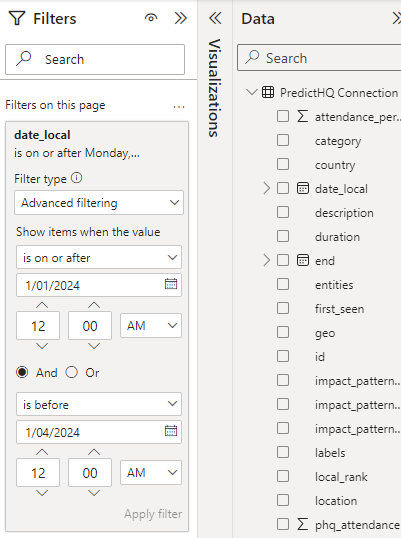
Before the next step of filling in the chart and table, add Filters for the page:\
in the **Filters on this page** section under **Filters**, drag the 'date\_local' field from the **Data** tab.

To set the date filter:

1. Change the drop-down to **Advanced filtering**.
2. Add the following:

**is on or after** start of the selected date range AND **is before** the day after the date range ends - in the filter menu, click **Apply filter**.\
In the example, those dates are anything on or after the 1st of January 2024 and anything before 1st of April 2024.

<figure><img src="https://2312509647-files.gitbook.io/~/files/v0/b/gitbook-x-prod.appspot.com/o/spaces%2FtNhzHETmXsrWeVBndqqJ%2Fuploads%2FkrtxFpkArns5KDvVXuIF%2FFilter%20by%20date%20range.png?alt=media&amp;token=6a9b716d-472c-4f47-9818-42ae1d665373" alt="The Filters on this page pane with an advanced date_local filter set"><figcaption><p>date_local Filter on page</p></figcaption></figure>

To fill the chart axis:

1. Fill the **X-axis** with the date\_local field.
2. Fill the **Y-axis** with the attendance\_per\_day field (this should default to a SUM which is correct).

For the table, drag these fields over and resize the columns as needed to fit everything:

Table: id, title, category, phq\_attendance, start\_local, end\_local

For all fields that involve a date (date\_local, start\_local, end\_local), remove the default **Date Hierarchy** format to get the actual date showing:

1. In the **Visualizations** column, open the dropdown for the field.
2. Select the field name instead of **Date Hierarchy**.

If you prefer **Date Hierarchy**, leave this as is.

<figure><img src="https://2312509647-files.gitbook.io/~/files/v0/b/gitbook-x-prod.appspot.com/o/spaces%2FtNhzHETmXsrWeVBndqqJ%2Fuploads%2FuoLKHc09DWCGGRtHP2sp%2FRemove%20Date%20Hierarchy.png?alt=media&amp;token=1e0cd288-3862-4299-a77c-40337e197201" alt="The date_local field menu with Date Hierarchy turned off"><figcaption><p>Remove Date Hierarchy</p></figcaption></figure>

For phq\_attendance in the table use the drop down to remove the summary, this summary isn’t actually grouping anything so is an unnecessary default that should be removed. Note that we only want to stop the summarization in the table, leave the chart as is.

To rename the chart title:

1. Click the chart.
2. In the **Visualizations** tab, click **General**, and then click **Title**.
3. Enter “Event Attendance per day in San Francisco”.

<figure><img src="https://2312509647-files.gitbook.io/~/files/v0/b/gitbook-x-prod.appspot.com/o/spaces%2FtNhzHETmXsrWeVBndqqJ%2Fuploads%2Fm2bmyYMsDTXQXyTwdr5o%2FRename%20title.png?alt=media&amp;token=fbb79341-3a29-4210-8625-0533687ebfd2" alt="The Visualizations pane with the chart title set to Event Attendance per day in San Francisco"><figcaption><p>Chart Title Rename</p></figcaption></figure>

To sort by highest to lowest attendance, click the **phq\_attendance** column in the table twice.

The final result should look like the following:

<figure><img src="https://2312509647-files.gitbook.io/~/files/v0/b/gitbook-x-prod.appspot.com/o/spaces%2FtNhzHETmXsrWeVBndqqJ%2Fuploads%2FATK4GgqUiZVN1md8unBL%2FFinal%20Result.png?alt=media&amp;token=b54bab24-ae07-4f06-9c40-0aa5d781986f" alt="The finished Power BI report with a daily attendance chart and a table of events"><figcaption><p>Final Report Result</p></figcaption></figure>

The final report screenshot shows how this analysis can be used; by clicking a spike (or any period on the chart) the report shows the events active during that period. The table data does not show the attendance per day like the chart, but the overall attendance of the event's full duration.

A useful addition to this basic view could be a drill down on the table by adding a new table visual to the group that has the 'id', 'date\_local', and 'attendance\_per\_day' columns, showing how the attendance of an event has been spread out over multiple days (if it is a multi-day event). For more understanding of multi-day events, see our [Working with Multi-day Events](https://docs.predicthq.com/getting-started/guides/date-and-time-guides/working-with-multi-day-and-umbrella-events) documentation.

You can add your own data to this chart to compare peaks and troughs of attendance vs sales in a basic comparison report. For deeper analysis into these kinds of reports, we suggest using our [Beam](https://docs.predicthq.com/api/beam) functionality to provide a deeper insight as to which types of events impact demand, as the Events API gives only a high-level view of the story without any additional analysis from PredictHQ to provide more in-depth information.

### Example API connection report template

The following is a downloadable Power BI template that automatically creates the example report used throughout this guide, using the API Connection method.

Upon opening the template, it prompts you to enter an API Access Token. Entering this token enables the report to automatically populate and build according to the parameters set forth in this guide.\
Wait 10-20 seconds between each step as data populates and data runs in the background.

<figure><img src="https://2312509647-files.gitbook.io/~/files/v0/b/gitbook-x-prod.appspot.com/o/spaces%2FtNhzHETmXsrWeVBndqqJ%2Fuploads%2Fm45PyxzdWMGh6rLM39zL%2FFill%20variable%20on%20template.png?alt=media&amp;token=3049a34f-b4b4-47f3-b62a-60b60140b02e" alt="The Power BI template prompt asking for a PredictHQ API Access Token"><figcaption><p>Fill PredictHQ API Access Token in the report when prompted</p></figcaption></figure>

Once the data connection has loaded for a bit you might be prompted for a connection method screen, as in the following screenshot. Select **Anonymous** and click **Connect**.

<figure><img src="https://2312509647-files.gitbook.io/~/files/v0/b/gitbook-x-prod.appspot.com/o/spaces%2FtNhzHETmXsrWeVBndqqJ%2Fuploads%2Ff8H06efYHQRvHWqCWK9M%2FTemplate%20Connection.png?alt=media&amp;token=ebc59a86-d373-426e-b43f-54a8b78201bd" alt="The Power BI connection method screen with Anonymous selected"><figcaption><p>Since the PredictHQ API Access Token has already been entered, select Anonymous here</p></figcaption></figure>

If there are any issues with this template refer to the [API Connection Method](#api-connection-method) and ensure all settings match with those steps.

#### Example report:

{% file src="/files/eWzLr7IwUeKonR177Szs" %}


---

# Agent Instructions
This documentation is published with GitBook. GitBook is the documentation platform designed so that both humans and AI agents can read, navigate, and reason over technical content effectively. Learn more at gitbook.com.

## Querying This Documentation
If you need additional information that is not directly available in this page, you can query the documentation by asking a question.

Perform an HTTP GET request on the following URL with the `ask` and `goal` query parameters:

```
GET https://docs.predicthq.com/integrations/third-party-integrations/using-event-data-in-power-bi.md?ask=<question>&goal=<user_goal>
```

`ask` is the immediate question: it should be specific, self-contained, and written in natural language.
`goal` is what the user is ultimately trying to achieve, the reason they need the answer. Sharing it helps GitBook give you a better, more relevant answer. A goal is most helpful when it describes the outcome the user wants rather than restating the question. For example, with `ask=how do I create an API token`, a goal like `automate deployments from our CI pipeline` lets GitBook tailor the answer to that use case.

The response will contain a direct answer to the question and relevant excerpts and sources from the documentation.

Use this mechanism when the answer is not explicitly present in the current page, you need clarification or additional context, or you want to retrieve related documentation sections.